
App Guide
A tour of the Crowdbook app
From creating your account to seeing exactly who can see what. Here's what it looks like on your phone, step by step.
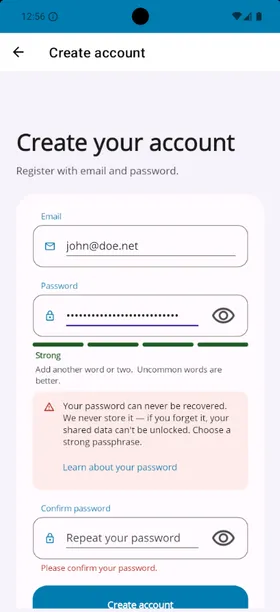
Create your account
Sign up with just an email and password. Your device generates your cryptographic keys the moment you register. That’s why the password can never be recovered: it’s not a login formality, it’s the only thing that can unlock your data. Your password should be strong, but make sure you can remember it or keep it in a password manager.
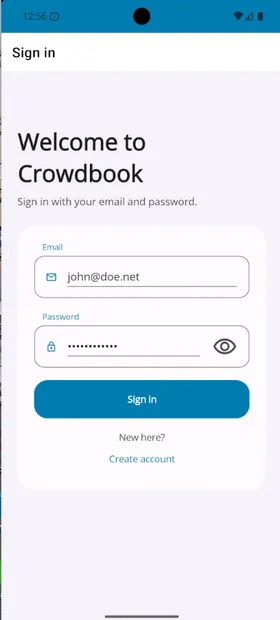
Log in
Returning is just email and password. Your device re-derives your keys locally and picks up right where you left off, synced groups and all. On devices that support biometrics, you can enable biometric login so you won't have to type that long password every time.
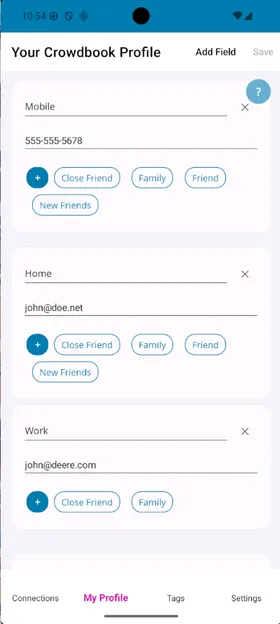
Fill in your profile
My Profile is where you add everything you might share: name, phone numbers, addresses, and more. Each field gets one or more tags, which control which connections can see that field. You also tag your connections; when tags match, those contacts see the corresponding information. Tags are personal. Choose labels that fit how you naturally organize your contacts.
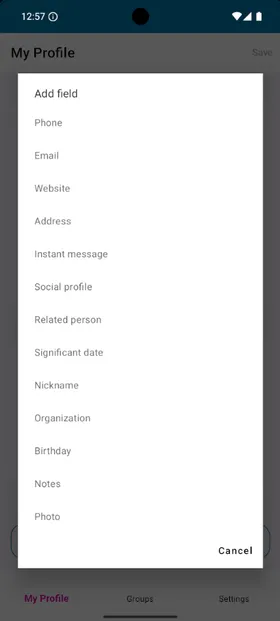
Add whatever fields you need
Your profile isn’t a fixed form. Tap Add field to pick from phone, email, address, social profiles, related people, notes, a photo, and more. Add only what’s actually relevant to you.
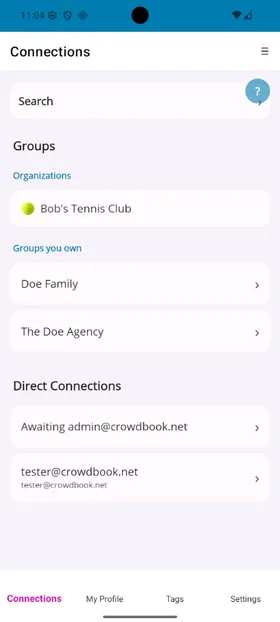
Make Connections
The Connections page lists all the groups and individuals you’re connected to in Crowdbook. Use search to filter the list, and the toolbar menu to create groups or invite new connections. Tap any group or individual to view details or manage what you share with them.
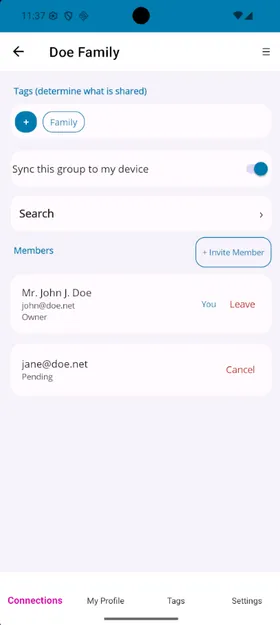
Manage a group
Inside a group, you can change the tags that control what you share, invite members, see who’s joined or pending, and turn Sync this group to my device off if you prefer not to add members to your phone’s contacts. Group owners can also rename the group, transfer ownership, or delete it.
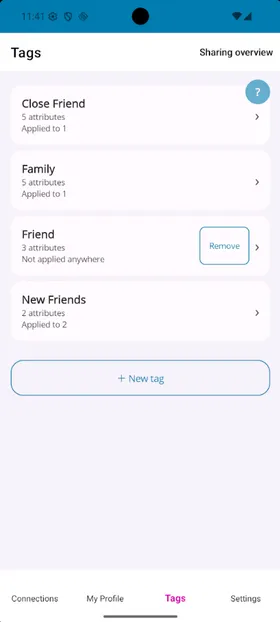
Tags
Tags are user-defined labels that control how your information is shared. You assign one or more tags to each field in your profile and to each connection. When a connection’s tags match a field’s tags, that field is synced to their address book. Tap any tag to manage which fields it includes. You can also delete tags that are no longer in use.
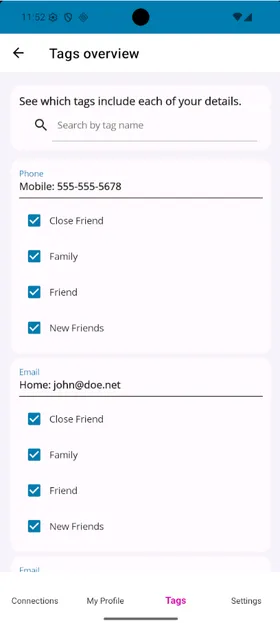
See the full sharing picture at a glance
Tags overview is a tags oriented view of the profile. This same information is available on the My Profile page, but here you can easily alter which tags are associated with each field.
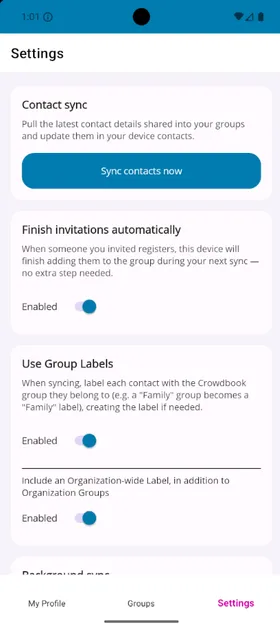
Sync and settings
"Sync contacts now" pulls the latest shared details into your phone whenever you want. Finish invitations automatically completes invites you’ve sent in the background as soon as the other person registers, Use Group Labels tags synced contacts with their Crowdbook group, optionally including an organization-wide label for organization based groups. Biometric sign-in can be enabled or disabled on supported device. Background sync is enabled by default with a default schedule of once per day. There is a QR code for joining someone's group in person, and a Log out button.
Curious how the privacy actually works?
Every screen above is backed by client-side encryption. The server only ever stores ciphertext. See how it works, step by step.